BREAKING

Saturday, 18 January 2014

How To Check Your Own Mobile Number For All Operator

How To Check Your Own Mobile Number For All Operator

Today we use different mobile operator connection and more than one SIM card. Sometimes we forgot our mobile number of that particular SIM. I was also unable to check my own Reliance number. I search on internet, but did not find a working result. So I made a list of working procedure and hope it will help others to find his/her own mobile number.

How to find your own mobile number of different service provider in India:

  • Airtel - Dial *121*9# or *282#
  • Aircel- Dial *122*131# or *234*4#
  • BSNL- CALL 164 or *1#
  • Reliance- *1# or *3#
  • Tata Docomo- *#1# or *580# or *1#
  • Vodafone- *111*2#
  • Idea-*#1# or *147*2*3#
  • MTS- SMS 'NUM' to 51230
Thank you for visiting my site, if comment for feedback.

Friday, 18 October 2013

Download SSC Combine Higher Secondary Level (CHSL) 2013 Admit Card

Download SSC Combine Higher Secondary Level (CHS) 2013 Admit Card

Download Staff Selection Commission (SSC) Combine Higher Secondary Level (CHSL)  2013 Examination Admit Card for Lower Division clerk (LDC) and Data Entry Operator (DEO) posts. The Region wise link is given in the below chart.

Dates of  Exams are 20.10.2013, 27.10.2013 and 10.11.2013.


State/UT


Regions & 
 Date of Exam 


Download Link


Web Portal


Rajasthan, Delhi, Uttarakhand
North Region


Maharashtra, Gujrat,Goa

Western Region (20.10.2013 and 27.10.2013)


Madhya Pradesh, Chhattisgarh

MP Sub-Region


Click here


West Bengal, Orrisa, Jharkhand, A&N Island, Sikkim
Eastern Region (27.10.2013 and 10.11.2013)


Assam, Arunachal Pradesh, Manipur, Meghalaya, Tripura, Nagaland, Mizoram


North Eastern Region (10.11.2013)


Click here


Andhra Pradesh, Punduchery, Tamilnadu

Southern Region


Click here

Karnataka, Kerla

KKR region (10.11.2013)

Click here

Hariyana, Punjab, J&K, Himachal Pradesh
North Western Sub-Region
(27.10.2013 and 10.11.2013)


Uttar Pradesh & Bihar
Central Region (20.10.2013, 27.10.2013 and 10.11.2013)


How To Take Screenshots With Nokia Lumia Lumia 520, 620, 720, 820, 822, 920, 1020

How To Take Screenshots With Nokia Lumia Lumia 520, 620, 720, 820, 822, 920, 1020

To take a screen capture or screenshot with your Nokia Lumia range of phones Nokia Lumia 520, 620, 720, 820, 822, 925, 928, 1020, etc. phone. These phones are based on windows os by Microsoft Corporation. Taking a screenshot is very easy and don't need any application.

How To Take screenshot On Nokia Lumia Phone?

  • Go to your desire screen.
  • Press the START and POWER button together.
  • Then browse your photo library and check SCREENSHOT folder.
  • Your task is complete now :)
How To Take Screenshots With Nokia Lumia Lumia 520, 620, 720, 820, 822, 920, 1020

Paygot.com is a Fraud E-currency Excahnger Site

Paygot.com is a Fraud E-currency Excahnger Site

Dear my friends, I'm writing this post against Paygot.com. It is a German based money exchange company, supports all major e-currencies. They are scamming peoples and stealing their money. 

      I was recently scammed out of $95 from Paygot. I order an exchange from Egopay to Paypal. They said instant processing. But days passed , they sent me nothing in my Paypal. I tried to call them, but the given German phone number was wrong. I mailed them. Nothing works. They f**ked my 95 dollars.

   So Beware of Paygot.com. They are fake. I have attach an image as a proof that I send them money.

Paygot.com is a Fraud E-currency Excahnger Site

Turn off your Laptop screen in a single click

Turn off your Laptop screen in a single click

Today I'm shearing a tool, that helps you to turn off your laptop monitor in a single click. When your are downloading a big file, you can turn off your screen. Your download will continue. It helps you saving a little amount of electricity. So you need to download a third party software, called Dark – Turn Off Monitor. It is little open source.net application to turn off your laptop screen by double clicking a Notify Icon.

So download the software Click Here. It supports in all OS. I'm using it in my Windows 8.

Unzip the setup file and install it.

After installing you'll get an icon in your notification area/bar. Just double click on it to turn off your screen. Follow below image.

Turn off your Laptop screen in a single click

How To Remove Subscribe to: Posts (Atom) Message in Blogger

  • How To Remove Subscribe to: Posts (Atom) Message in Blogger

    Do you want to remove Subscribe to: Posts (Atom) message from your blog. Some blogger template shows Subscribe to: Posts (Atom) link below post. It covers an extra space in your blog and its time for removal. So please follow the steps..


    1. First go to your blogger home and click on your Template.
    2. Now click on Edit HTML. Like below image.

      How To Remove Subscribe to: Posts (Atom) Message in Blogger

    3. Now search for below code(Use CTRL+F).

    4.  <b:include data='feedLinks' name='feedLinksBody'/>
    5. Now just remove the code line from your template. Save your template.
    How To Remove Subscribe to: Posts (Atom) Message in Blogger

    **This will removes the Subscribe to: Posts (Atom) message from your blog. If you need any help please comment below.


  • How To Remove "No Post" Message From Your Blog

    Posted:Fri, 23 Aug 2013 10:14:00 +0000
    How To Remove "No Post" Message From Your Blog

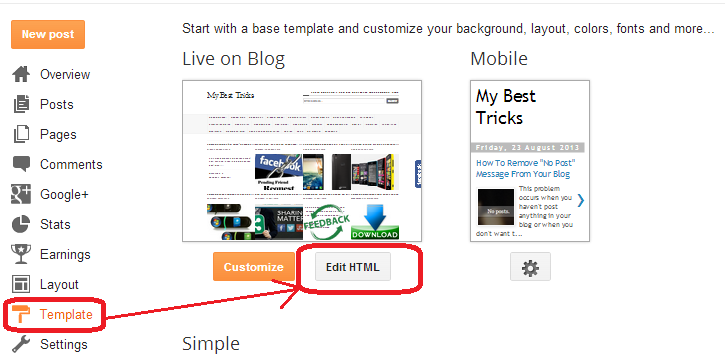
    This problem occurs when you haven't post anything in your blog or when you don't want to show any post in your blogger homepage. You can remove this message by a simple CSS trick. You need to add some CSS code in your blog template. Just follow the steps down...


    1. Go to your blogger home and click Template
    2. Then click Customize.
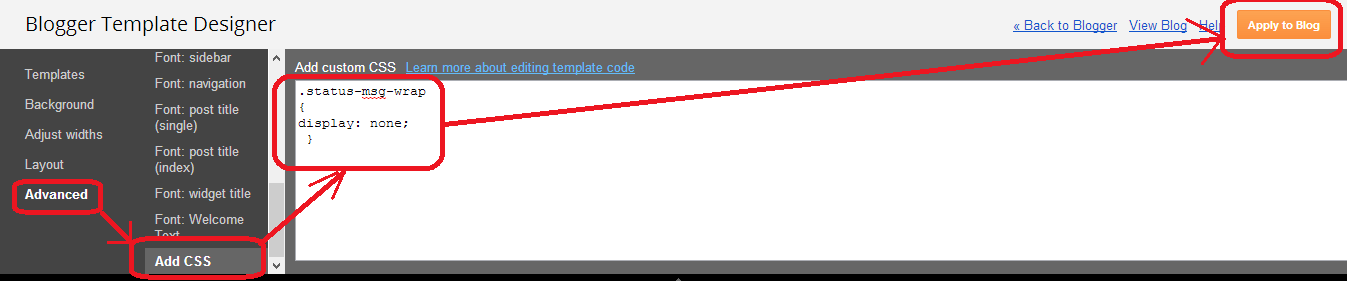
    3. Then click Advance tab, scroll down and click Add CSS.
    4. Now add the below code in the CSS text box.

      .status-msg-wrap
      {
      display: none;
       }
    5. Now click Apply to Blog. Check your blog, 'No posts' message box should now have disappeared .
    How To Remove "No Post" Message From Your Blog


    **If you already have codes in your CSS text box, just place the code after your previous code. If you like my post please comment.
 
Copyright © 2013 My Best Tricks
Design by RoadStar Rakesh |
    Twitter Facebook Google Plus YouTube