BREAKING
Showing posts with label Windows 8. Show all posts

Thursday, 10 January 2013

Download Windows 8 Enterprise For 90 Days Free


Download Windows 8 Enterprise For 90 Days Free
               
             Microsoft recently launched its brand new Operating System Windows 8 which is now available for download 90 days trial. The Windows 8 Enterprise 90-day evaluation is designed specifically to help IT professionals test their software and hardware on the final version of Windows 8 Enterprise.


About this Evaluation

    The Windows 8 Enterprise evaluation provides up to a 90-day evaluation of Windows 8 Enterprise. It is intended for evaluation purposes only and cannot be used for productive business or personal purposes. In order to use this evaluation, the product must be activated online with Microsoft-hosted activation and validation services.

System Requirments

Windows 8 works on the same hardware that powers Windows 7:
Processor: 1 gigahertz (GHz) or faster
RAM: 1 gigabyte (GB) (32-bit) or 2 GB (64-bit)
Hard disk space: 16 GB (32-bit) or 20 GB (64-bit)
Graphics card: Microsoft DirectX 9 graphics device with WDDM driver

How to download

  1. First Go to This Page  and scroll down.
  2. Choose your Download version.

    Download Windows 8 Enterprise For 90 Days Free

  3. After clicking on your version its redirect to Microsoft login page. Enter your Microsoft / Outlook / Hotmail / Live account.

    Download Windows 8 Enterprise For 90 Days Free
  4. After Sign in, You have to fill a small form regarding Name, Email, Country etc. Select your windows language carefully. And finally click Continue. It will redirect and start download your windows setup.iso file around file size 3GB. 
  5. Its better to use IDM for downloading.
  6. After downloads complete , Burn the ISO file and make a bootable DVD to install windows 8.

Please Share Your Views!! Comment Pls!!


Thursday, 20 December 2012

Add a Shutdown Menu To Windows 8 Taskbar

Add a Shutdown Menu To Windows 8 Taskbar

             In Windows 8 Power option is not available in taskbar or in desktop. I just found some easy steps for Power shortcuts (Shutdown, Hibernate, Log Off, Switch User, Lock). The technique involves creating a series of shortcuts using special commands, saving them to a folder, and then specifying that folder as a taskbar toolbar.


Menu option
Command
Shut downshutdown.exe /s /t 00
Restartshutdown.exe /r /t 00
Log offshutdown.exe /l
Sleep or Hibernaterundll32.exe powrprof.dll,SetSuspendState
Lockrundll32.exe user32.dll,LockWorkStation
Switch usertsdiscon.exe

Easy Steps:


  1. First make a New Folder and rename it with "Shutdown". 
  2. Make a new shortcut in Shutdown folder. Add the above command at "Type the location of the item" field and name the shortcut as "Shutdown". Follow below image.

    Add a Shutdown Menu To Windows 8 Taskbar

    Add a Shutdown Menu To Windows 8 Taskbar
  3. Now create the other shortcuts for Restart, Hibernate, Log Off etc. In order to use the taskbar toolbar, you’ll need to create all your shortcuts in Shutdown folder.
  4. Once you created your all shortcuts, now you can add a unique icon for each shortcut. Go to your shortcut Properties, click Change Icon then click the Browse button. You can find a host of icons in the Shell32.dll file, as shown in below images.

    Add a Shutdown Menu To Windows 8 Taskbar

  5. Now you have create a toolbar in your taskbar. Right-click on the taskbar and then select the Toolbars >> New toolbar >>Choose a folder dialog box and will need to locate and select the Shutdown folder. Your new Shut down menu will now appear on the right edge of the taskbar.


    Add a Shutdown Menu To Windows 8 Taskbar


Source:


TechRepublic [By Greg Shultz]


Comment Please!!!!

Sunday, 9 December 2012

Install Broadcom Dell Wireless 365 Bluetooth Module Application On Windows 8

Install Broadcom Dell Wireless 365 Bluetooth Module Application On Windows 8
   
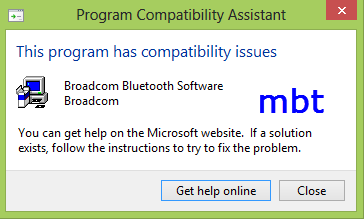
                When I first install Windows 8 in my laptop, I faced problem with my Bluetooth driver. When I tried to install Dell Wireless 365 Bluetooth Module Application in my lappy it shows error likes Program Compatibility Issue . Error screeshot like below picture.


Install Broadcom Dell Wireless 365 Bluetooth Module Application On Windows 8

Solution:
  • Go to the extracted files in C Drive >> dell >> drivers >> R226746 >>Win32/ Win64.
  • In Win32/Win64 folder run inst.exe as administrator.
  • This installed your driver successfully.
  • I had made a screenshot below. Please comment.

Install Broadcom Dell Wireless 365 Bluetooth Module Application On Windows 8


Copyright © 2013 My Best Tricks
Design by RoadStar Rakesh |
    Twitter Facebook Google Plus YouTube