BREAKING
Showing posts with label Blogger Help. Show all posts

Friday, 18 October 2013

How To Remove Subscribe to: Posts (Atom) Message in Blogger

  • How To Remove Subscribe to: Posts (Atom) Message in Blogger

    Do you want to remove Subscribe to: Posts (Atom) message from your blog. Some blogger template shows Subscribe to: Posts (Atom) link below post. It covers an extra space in your blog and its time for removal. So please follow the steps..


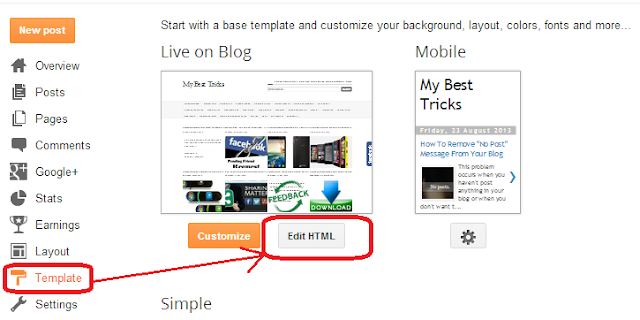
    1. First go to your blogger home and click on your Template.
    2. Now click on Edit HTML. Like below image.
      How To Remove Subscribe to: Posts (Atom) Message in Blogger

    3. Now search for below code(Use CTRL+F).

    4.  <b:include data='feedLinks' name='feedLinksBody'/>
    5. Now just remove the code line from your template. Save your template.
    How To Remove Subscribe to: Posts (Atom) Message in Blogger

    **This will removes the Subscribe to: Posts (Atom) message from your blog. If you need any help please comment below.


  • How To Remove "No Post" Message From Your Blog

    Posted:Fri, 23 Aug 2013 10:14:00 +0000
    How To Remove "No Post" Message From Your Blog

    This problem occurs when you haven't post anything in your blog or when you don't want to show any post in your blogger homepage. You can remove this message by a simple CSS trick. You need to add some CSS code in your blog template. Just follow the steps down...


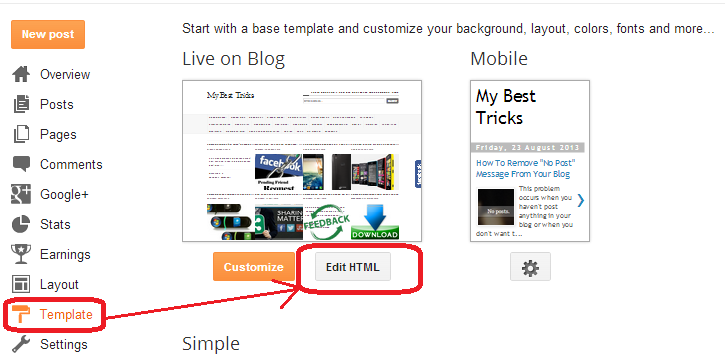
    1. Go to your blogger home and click Template. 
    2. Then click Customize.
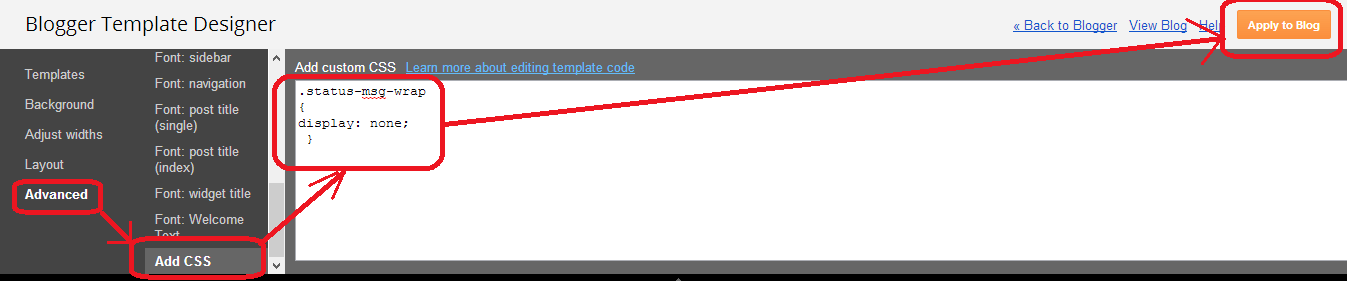
    3. Then click Advance tab, scroll down and click Add CSS.
    4. Now add the below code in the CSS text box.

      .status-msg-wrap
      {
      display: none;
       }
    5. Now click Apply to Blog. Check your blog, 'No posts' message box should now have disappeared .
    How To Remove "No Post" Message From Your Blog


    **If you already have codes in your CSS text box, just place the code after your previous code. If you like my post please comment.

Thursday, 21 February 2013

How To Remove Locked Widget From Blogger Layout


Today I am sharing a small solution which most of  new blogger friends facing. Sometime we update our blog template for better looking. Then we see some locked widget without remove option in blog layout. The idea is just change the lock mode form true to false by editing at template section. We can also remove the Attribution gadget("Powered By Blogger") using this method.

Widget in your blog layout

  • Go to your blogger Dashboard >> Layout. 
  • To edit the widget just click edit at there.


Lock & Unlock Widget

  • I made a screenshots of above two types of widget. The locked widget don't have remove button.


How to unlock it?

  • Just go to your layout and click edit to get the widget id. You can get the widget id in your browser address bar.

Copy the widget id from widget address bar

  • Now go to Template >> Edit Template. And find the above code.[Use Ctrl+F to find].
  • You will get a line like this <b:widget id='HTML4' locked='true' title='Recent Posts' type='HTML'/> 
  • Change the locked='false'
  • Save your template.

Final step:


  • Now you can easily remove it from your layout. Now the widget shows remove button in your layout.
  • You did all successfully.

 
Copyright © 2013 My Best Tricks
Design by RoadStar Rakesh |
    Twitter Facebook Google Plus YouTube